
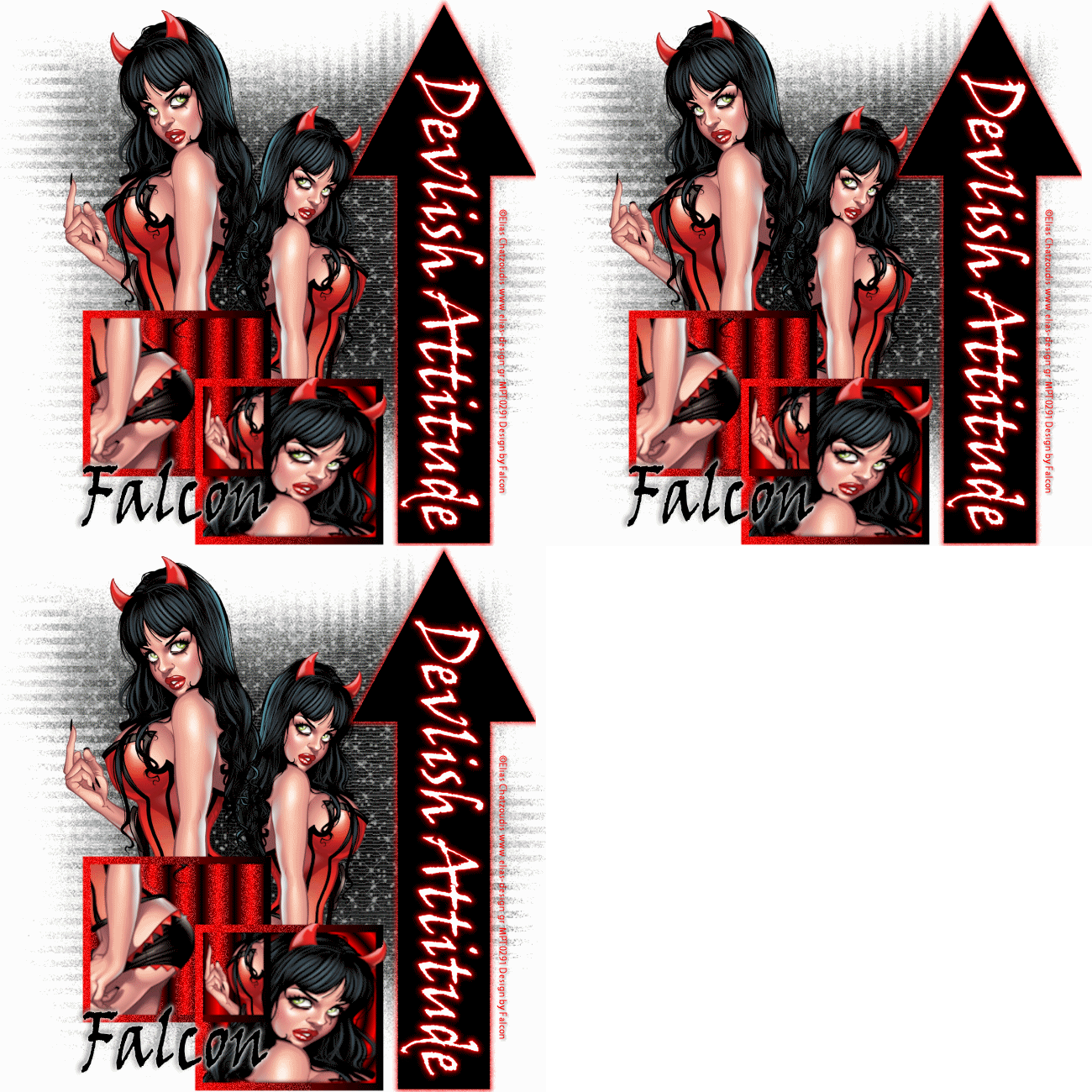
Supplies Needed
Tube of choice, I am using the fantastc artwork of Elias Chatzoudis
you can find the artwork here at MPT
Font: VinerHand &
Xfeno 2 -Constellation.
Eye Candy-Impact - Gradient Glow
Drop Shadow of choice.
Mask_81 by Weescotslass
Xfeno 2 -Constellation.
Eye Candy-Impact - Gradient Glow
Drop Shadow of choice.
Mask_81 by Weescotslass
Remember to Save Often!!!
Let's begin
Open new image 600 x 600.
Set your Material palette with your chosen colors. I used #ff0000 and #000000,change to
Set your Material palette with your chosen colors. I used #ff0000 and #000000,change to
Gradient and use these settings:
 Using your rectangle tool draw out a square not to large. convert to Raster than

duplicate.Image - Mirror.Move one square to form this:

Click inside 1st square and change your material palette to these settings:

New layer, then flood fill frame-deselect (ctrl+D).
Repeat for 2nd frame but change the setting to these:

Repeat for 2nd frame but change the setting to these:

Using your Selection Tool draw a square around the center box:

Now using your Freehand Tool draw out around the square, see below.


New layer,add part of your tube, repeat for the other frames.
Close out background layer and merge visible.
Add your main tube/s position them.
Close out background layer and merge visible.
Add your main tube/s position them.
Click on Preset shapes and draw out a shape you like to use.I used the arrow.
Add the wordart I used Vinerhand White with Stroke 1 - Red color.
I then add a Gradient Glow with these settings:

Add a new layer above background and flood fill with #000000.
Apply your mask, Merge group.
Effects-Xfeno-Constellation with these settings:

I then add a Gradient Glow with these settings:

Add a new layer above background and flood fill with #000000.
Apply your mask, Merge group.
Effects-Xfeno-Constellation with these settings:

Add Drop Shadow to your layers except mask layer.
Add your Artist © and your name then crop and save.
This is only a guide and feel free to use any other element you wish.
Most of all have fun creating.
This is only a guide and feel free to use any other element you wish.
Most of all have fun creating.
If you wish to Animate please continue.
Animation:
Open AS then click back to psp
With Magic Wand click on frame layer then holding down Shift key click on Arrow layer.
Adjust-Add Noise -Uniform - Noise - 30.Remeber to click on both layers then deselect (ctrl+D).
Edit-Copy Special-Copy Merged. Click into AS then paste as a New Animation.
Back in psp Click Undo button twice then repeat above, noise this time 35 then 40.
Check your animation if happy save as a Gif and your done.
I hope you have had fun.
This tutorial was written by Maree (aka Falcon) on 16 October 2010
Any similarities to this tutorial are purely coincidental
Any similarities to this tutorial are purely coincidental


